Everything AUTEUR Does
Every feature and every shortcut, in one place.
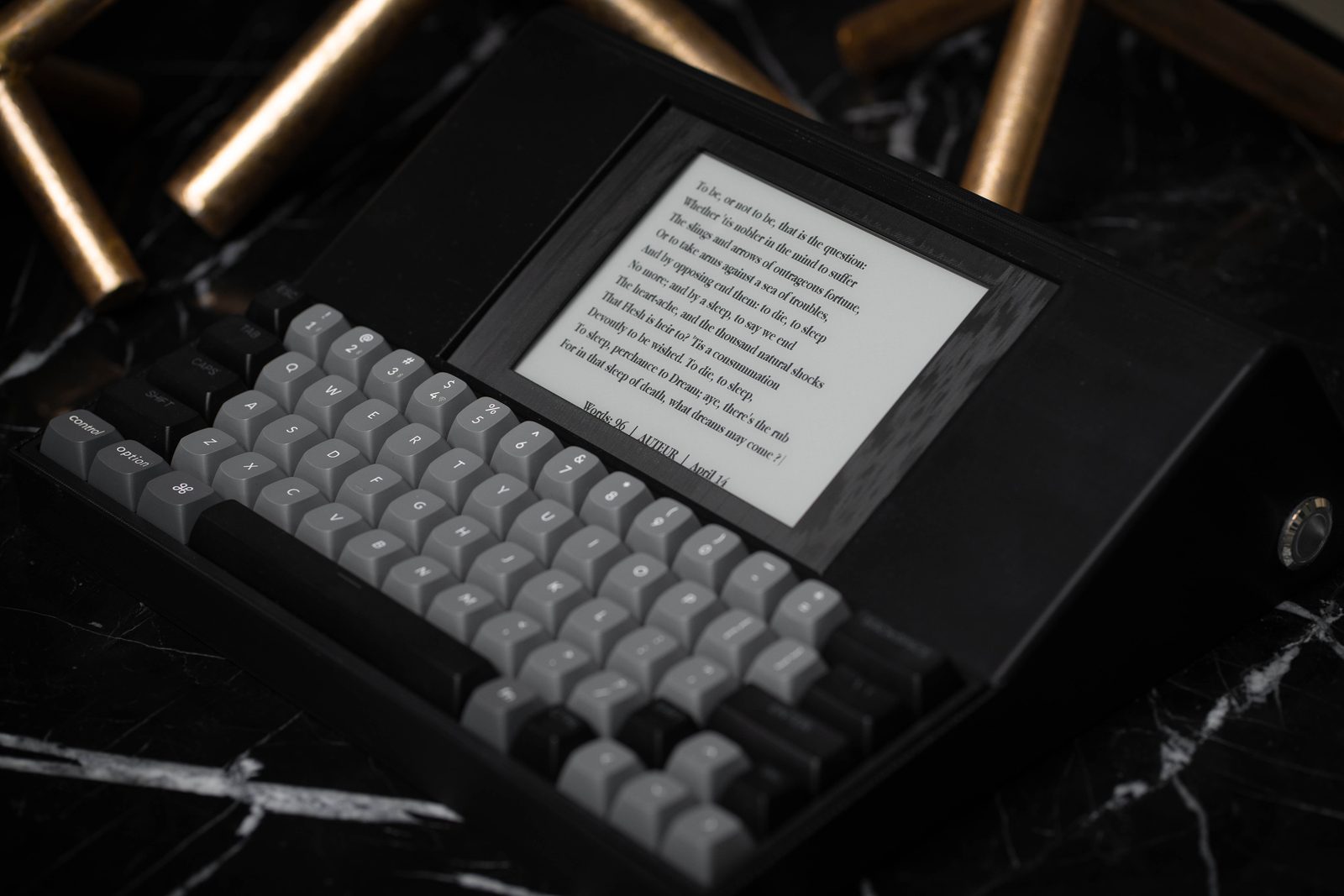
This is everything AUTEUR does, in one place: every feature in the writing software as it runs on the device today, followed by the complete shortcut list.
AUTEUR has no menus, no settings screen and no account. Everything below lives on the keyboard, and the full shortcut list lives on the device too, one keystroke away at Ctrl+/.
If you only learn one shortcut, learn that one.
Writing without waiting
Press the power button and AUTEUR comes up on the draft you were last writing, with the cursor where you left it. There is no operating system to boot, no login and nothing to sync.
- Instant typing. Keystrokes land on the page as you make them, whether you are on page one or page one hundred.
- No flashing mid-sentence. E-ink collects faint ghosting as text changes. AUTEUR clears it with a full refresh, but only once you pause, never while you are typing.
- Refresh on demand. Ctrl+R gives you a clean page whenever you want one.
Your work is always saved
You never have to think about saving. AUTEUR saves on its own, saves before anything that would take you away from a draft, and saves on the way out.
- Autosave. Stop typing for 15 seconds and any changes are written to the device.
- Saves on every exit. Starting a new draft, switching drafts, opening one from the list and powering off all save first. Ctrl+S saves on demand.
- No half-written saves. Every save is written in full to a temporary file, then swapped in, so an interrupted save can never leave a draft half-written.
- Resume where you stopped. AUTEUR remembers the draft you were in and your exact cursor position, even if the last thing you did was move the cursor rather than type.
- Safe power off. Press the power button or Ctrl+Shift+Esc. AUTEUR saves, records your place and commits everything to storage before the sleep screen appears. When you see the sleep screen, your work is safe.
- Auto power off. After eight minutes without a keystroke, AUTEUR saves and powers itself off through the same safe shutdown. Press the power button and you are back where you stopped.
- Nothing leaves the device. No cloud, no account, no subscription. Your drafts live on AUTEUR until you copy them off.
Drafts
Every piece of writing on AUTEUR is a draft, numbered A001, A002 and so on, and titled by whatever you write on its first line.
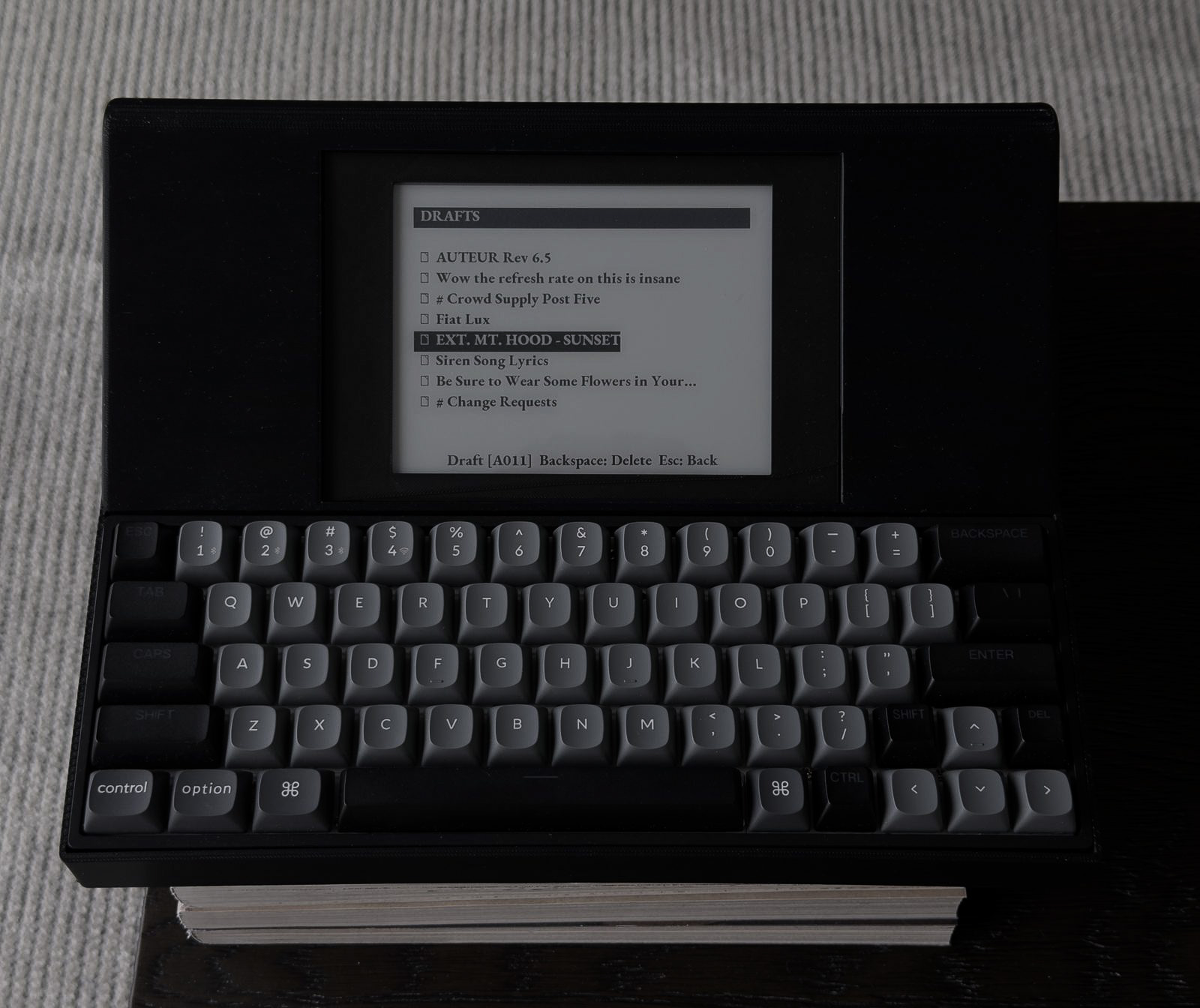
- New draft. Ctrl+N saves what you are working on and opens a blank page. A draft gets its number the first time it saves; until then the status bar reads New.
- Drafts list. Ctrl+D opens every draft, one per row, each shown by its first line. Write a title as your first line and that is what the list shows. A draft with an empty first line shows its number instead. The list opens on the draft you have open.
- Jump by number. In the drafts list, type a number and press Enter to go straight to that draft, or the closest one to it.
- Find by first line. Type words instead of a number and Enter finds the next draft whose first line contains them. Capitalization does not matter.
- Move around. Up and Down move the highlight, Left and Right turn pages, Home and End jump to the first and last page. The title band shows which page you are on, like 2/5. Enter opens the highlighted draft and Esc closes the list.
- Cycle without the list. Ctrl+Left and Ctrl+Right step to the previous or next draft, saving first. A short note shows where you are, like [004 of 025]. Holding the chord does not repeat, so you cannot fly through your whole library by accident.
- Delete with a second key. Backspace on a highlighted draft asks first, Enter confirms, and any other key cancels, including a second Backspace. A reflexive double tap can never delete your work.
Projects
Projects group drafts without moving them, so one draft can belong to several projects at once and nothing is ever lost by reorganizing.
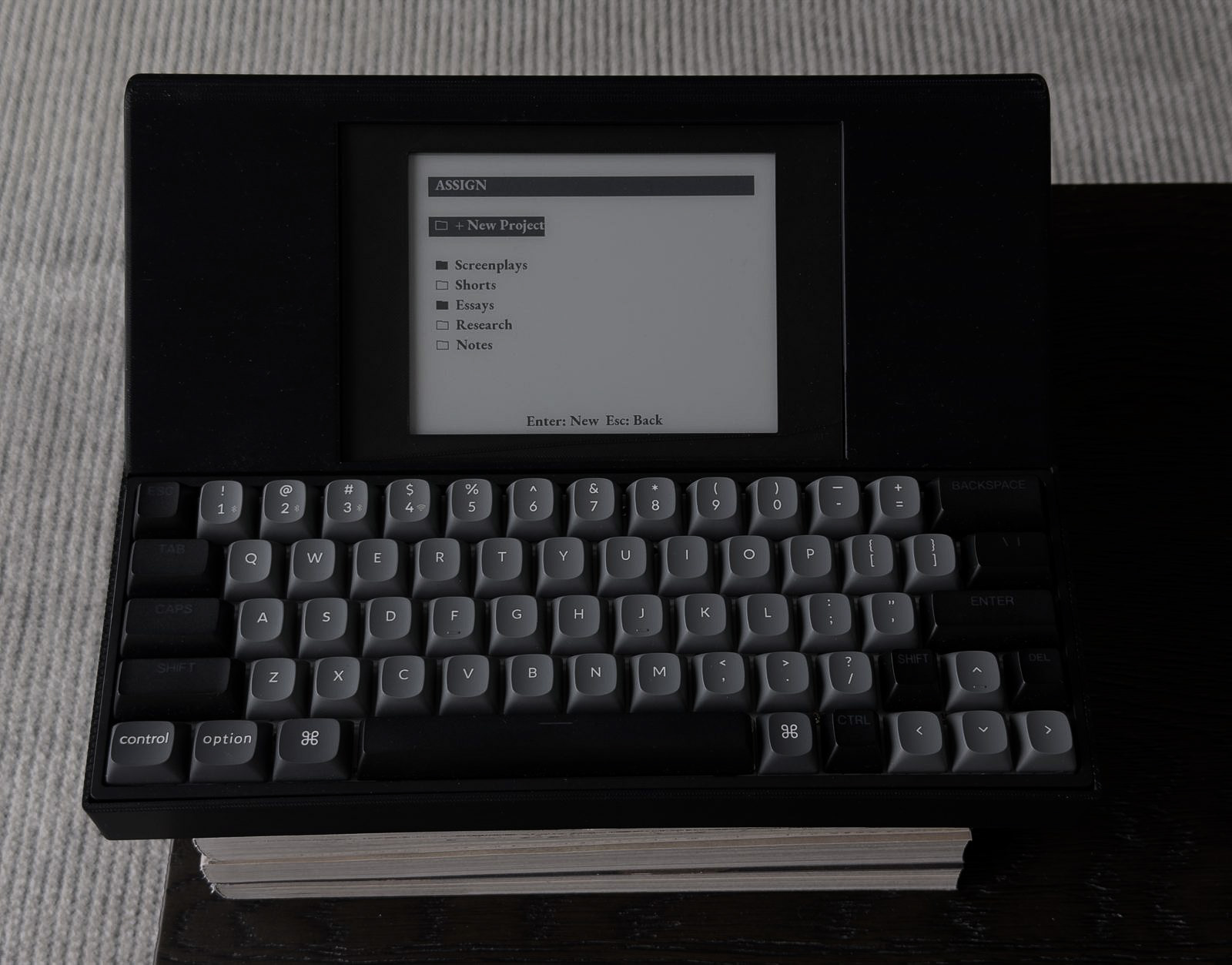
- Make a project and file a draft. In the drafts list, highlight a draft and press Ctrl+P. Choose + New Project, type a name of up to 12 characters, and Enter creates the project and files the draft in one step.
- Add or remove. On the same screen, Enter on any project adds the highlighted draft or takes it back out. A filled folder icon marks the projects the draft already belongs to.
- No accidental duplicates. Names match regardless of capitalization, so typing nightshade files into Nightshade instead of creating a second project.
- Browse by project. Ctrl+P from the page opens the Projects list, each row showing a name and a count, like Nightshade - 2 drafts. Enter opens that project's drafts and Esc goes back to the projects.
- Know where you are. Open a draft through a project and the project's name stays in the status bar while you write.
- Remove from a project. Inside a project's drafts, Backspace then Enter takes the draft out of the project. The draft itself stays in your drafts list.
- Delete a project, keep the writing. Backspace then Enter in the Projects list deletes the project. Every draft in it stays exactly where it was, along with its other projects.
Search and lookup
Ctrl+L finds text in the draft you are writing without leaving the page. The search box lives in the status bar, so every match is read in context.
- Matches as you type. With each character, the first match after your cursor is highlighted on the page. Capitalization does not matter.
- Step through matches. Down jumps to the next match and Up to the previous one, wrapping around the draft in both directions.
- Stop where you want. Enter puts the cursor at the end of the match and drops the highlight, so your next keystroke adds to the text instead of replacing it.
- Cancel cleanly. Esc, or Ctrl+L again, puts the cursor back exactly where it was, along with any text you had selected.
- Typos cost nothing. With no match, the status bar says so and keeps your query, so Backspace fixes it. Your cursor does not move.
Screenplay mode
Ctrl+F turns AUTEUR into a screenplay typewriter: you write in Fountain, the plain-text screenplay format, and the page formats itself as you type.
- The real page. Screenplays set in Courier Prime on the standard 60-column grid, matching Highland's page layout line for line. A line that breaks on screen breaks in the same place on the printed page.
- Elements indent themselves. Character cues, dialogue and parentheticals sit at their standard positions, transitions align right, and centered text like
>THE END<centers. - Live emphasis.
*italic*,**bold**,***bold italic***and_underline_render as you type them. The markers hide when your cursor leaves them and come back when you are editing inside them. - Page count. The status bar shows the screenplay page you are on, counted in standard 54-line pages.
- Locked type. Typeface and size do not change in screenplay mode, because the grid is the format. Ctrl+F again returns to prose.
- Plain files. Your screenplay is saved as plain text in Fountain syntax, ready for any screenwriting app that reads Fountain.
Markdown mode
Ctrl+M switches to live Markdown: headings, emphasis and lists render on the page as you write them, and the symbols get out of the way.
- Headings at display size.
#,##and###set three heading sizes, and deeper levels use the third. A space after the hashes is required, so a#hashtagstays a hashtag. - Emphasis in its own type.
*italic*,**bold**and***bold italic***each draw in a matching face. Underscores work too, whilesnake_casestays literal. - Symbols hide. Emphasis markers disappear when your cursor leaves the pair and reappear when you are inside it, so you always see what you are editing. Heading marks show only while your cursor is on that line. A marker that was never closed stays visible, so the page tells you the truth about the file.
- Proper lists. Items starting with
-,*,+or a number indent from the margin, and wrapped lines hang under the text rather than under the bullet. Bullets and numbers always stay visible. - Headings never stranded. A heading is never split across two pages and never left alone at the bottom of one. It moves to the next page with the text it introduces.
- Every typeface. Markdown works in Garamond, Sans and Courier. Size stays at Medium while the mode is on.
- Prose stays plain. Outside Markdown mode, an asterisk is just an asterisk. Markdown and screenplay modes never run at once; turning one on turns the other off.
Type
AUTEUR has three typefaces in three sizes, all in bold weights tuned to stay crisp on e-ink.
- Three typefaces. Ctrl+[ and Ctrl+] cycle through AUTEUR Garamond, our own Garamond and the default, AUTEUR Sans, and Courier Prime.
- Three sizes. Ctrl+- and Ctrl++ step through Small, Medium and Large: 15, 11 or 8 lines on the page.
- Nothing jumps. Every typeface uses the same line spacing at each size, so switching typefaces changes where lines wrap and nothing else.
- Quiet frame. The status bar and every list screen stay in the same type no matter what you write in, so only your words change.
- Modes own their type. Screenplay mode is always Courier Prime on the screenplay grid, and Markdown mode is always Medium.
Languages
AUTEUR writes in ten keyboard layouts, and Ctrl+K switches between them. Every layout is drawn key by key on the Languages page.
- Ten layouts. English (US, US International and UK), Spanish, French (AZERTY), German (QWERTZ), Italian, Portuguese (Brazil), Polish (Programmer's) and Russian.
- Switch in a keystroke. Ctrl+K lists the layouts. Up and Down move, Enter switches and Esc leaves things as they were. AUTEUR starts on English (US) each time you switch it on.
- Accents the way you learned them. Each layout follows its language's standard keyboard. Press ´ then e for é, or hold AltGr, the key right of the spacebar, for a key's third character.
- Every letter on the page. All three typefaces carry the accented letters of every supported language, and Cyrillic for Russian, in every size.
- Markdown and Fountain in any language. Every mark Markdown and Fountain use, from
#to[[notes]], can be typed in every layout, even where a language's standard keyboard leaves one out. - Shortcuts follow the letters. Letter shortcuts follow the layout, so Ctrl+Z is wherever that layout types Z. The Languages page shows where each one lands. Punctuation shortcuts never move, and in Russian every shortcut stays on its usual key.
The page
One status bar along the bottom carries everything you need while writing, and Ctrl+H hides it when you want nothing but the page.
- Draft on the left. The draft's number, like A004, so you can match it to its file later. New drafts read New until their first save.
- Progress in the middle. A live word count, the project you are in (or the current mode), and your page. Screenplays count standard 54-line pages; prose counts manuscript pages of about 250 words.
- Battery on the right. A charge percentage, checked whenever you pause and read on the conservative side.
- Hide it all. Ctrl+H hides the status bar and Ctrl+H brings it back. Search and short notices still appear there when they need to.
- Short notices. Actions confirm themselves briefly in the status bar, like [Saved] or [Undo], then get out of the way.
- Invert. Ctrl+I switches to white text on black, and back.
Editing
Editing works the way your hands already expect from a computer, with a few choices made for a writing instrument.
- Selection. Shift and the arrows select text. Ctrl+A selects everything, Ctrl+Shift+W the word under the cursor, Ctrl+Shift+L the whole line. Typing over a selection replaces it.
- Cut, copy, paste. Ctrl+X, Ctrl+C and Ctrl+V, including across multiple lines.
- Undo. Ctrl+Z steps back through your last 50 edits.
- Moving around. The arrows move by character and by line, and Home and End jump to the start and end of a line.
- Tab. Inserts four spaces.
- Key repeat where it belongs. Held arrows, Backspace and Delete repeat as fast as the screen can draw. Held letters never repeat, because a stuck key should not type eeeeee into your manuscript.
- Live word count. The count in the status bar updates with every keystroke.
Getting your drafts off
Your drafts are plain text files, and getting them onto a computer takes a USB-C cable and nothing else.
- Shows up as a drive. Connect AUTEUR to a computer and it appears as a USB drive named AUTEUR, with every draft as a .txt file named by its number: A001.txt, A002.txt, and so on.
- Nothing to install. No app, no driver, no account, no cloud. Any computer that reads a USB drive can copy your work off.
- Snapshot at power on. AUTEUR prepares the drive each time it powers on, so the drive holds your drafts as of that power on.
- Open anywhere. Prose is plain text, screenplays are Fountain and Markdown drafts are standard Markdown, so every file opens in the tools you already use.
Every shortcut
All 24 shortcuts are also on the device: Ctrl+/ opens the list, and Ctrl+/ or Esc closes it. The labels below match the screen word for word.
Drafts and navigation
| Shortcut | What it does |
|---|---|
| Ctrl+/ | Shortcuts |
| Ctrl+N | New Draft |
| Ctrl+S | Save Draft |
| Ctrl+D | Drafts List |
| Ctrl+P | Projects List (Assign in Drafts) |
| Ctrl+Left/Right | Previous/Next Draft |
| Ctrl+L | Lookup/Search |
Modes and display
| Shortcut | What it does |
|---|---|
| Ctrl+F | Film/Fountain Mode |
| Ctrl+M | Markdown Mode |
| Ctrl+R | Refresh Ink |
| Ctrl+I | Invert Display |
| Ctrl+-/+ | Decrease/Increase Font Size |
| Ctrl+[/] | Previous/Next Font |
| Ctrl+K | Keyboard Layout |
| Ctrl+H | Hide/Show Status Bar |
Editing
| Shortcut | What it does |
|---|---|
| Shift+Arrow | Select Text |
| Ctrl+Z | Undo |
| Ctrl+X | Cut |
| Ctrl+C | Copy |
| Ctrl+V | Paste |
| Ctrl+A | Select All |
| Ctrl+Shift+W | Select Word |
| Ctrl+Shift+L | Select Line |
Power
| Shortcut | What it does |
|---|---|
| Ctrl+Shift+Esc | Power Off |
| Power button | Save and power off; press again to wake |
Inside the drafts list (Ctrl+D)
| Key | What it does |
|---|---|
| Up / Down | Move the highlight |
| Left / Right | Previous / next page |
| Home / End | First / last page |
| Enter | Open the draft |
| Type a number, then Enter | Jump to that draft |
| Type words, then Enter | Find a draft by its first line |
| Ctrl+P | Assign the draft to a project |
| Backspace, then Enter | Delete the draft (inside a project: remove it from the project) |
| Esc or Ctrl+D | Close |
Inside the Projects list (Ctrl+P)
| Key | What it does |
|---|---|
| Up / Down | Move the highlight |
| Left / Right | Previous / next page |
| Enter | Open the project's drafts |
| Backspace, then Enter | Delete the project (its drafts are kept) |
| Esc or Ctrl+P | Close |
Inside the Assign screen (Ctrl+P in the drafts list)
| Key | What it does |
|---|---|
| Enter on + New Project | Name a new project; Enter again creates it and files the draft |
| Enter on a project | Add the draft to it, or take it back out |
| Esc or Ctrl+P | Back to the drafts list |
Inside search (Ctrl+L)
| Key | What it does |
|---|---|
| Type | Find as you type |
| Down / Up | Next / previous match |
| Enter | Stop on the match |
| Esc or Ctrl+L | Cancel and return the cursor |
Inside the shortcut list (Ctrl+/)
| Key | What it does |
|---|---|
| Left / Right or Up / Down | Previous / next page |
| Esc or Ctrl+/ | Close |